Guardrails
Turn on guardrails for your agents, see what they would have stopped, and switch them to Block once you trust them.
See the rules on your agents
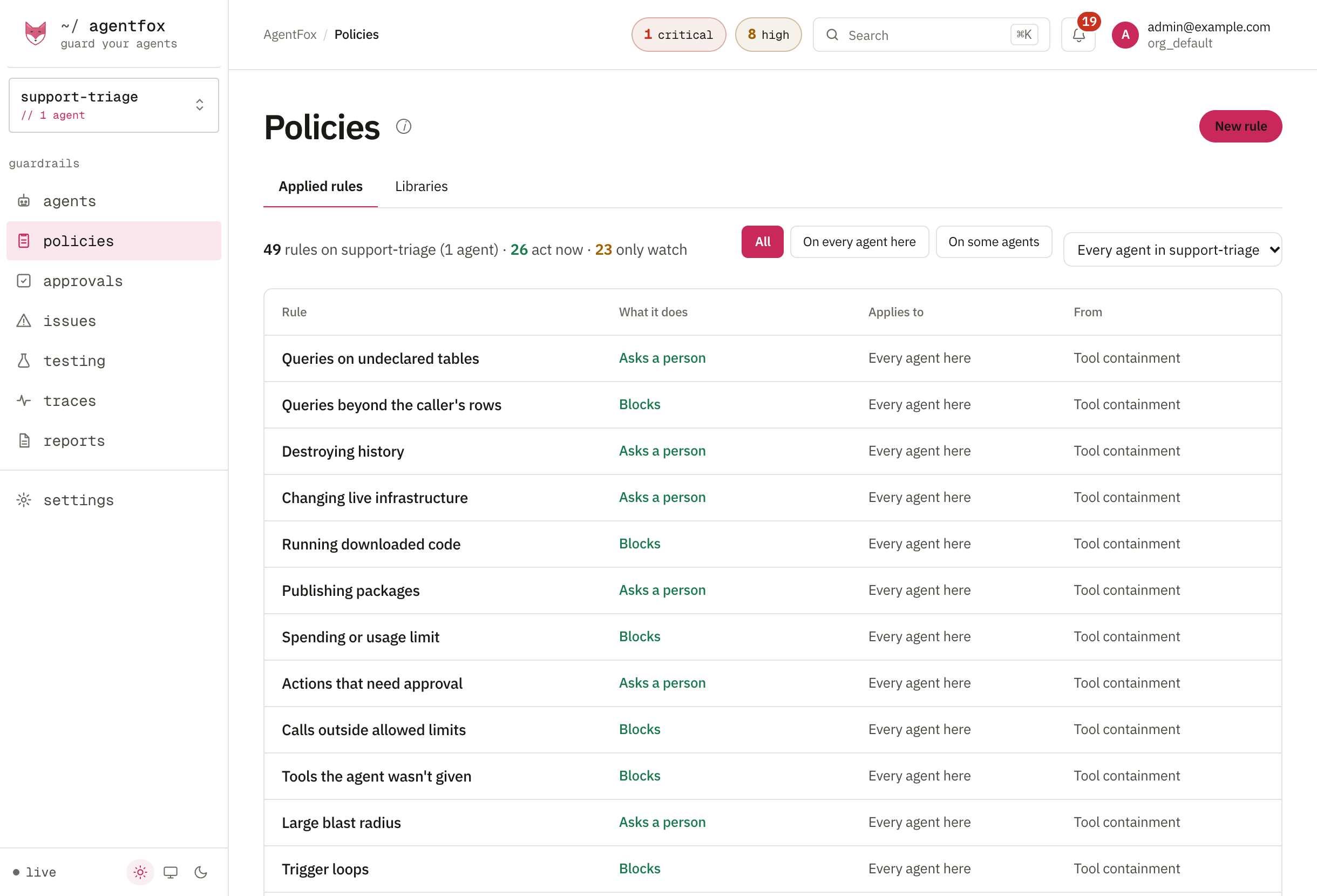
Open Policies. Applied rules lists each rule, what it does (blocks, asks a person, or watches), which agents it applies to, and the library it comes from. Pick a project in the sidebar to see only its agents.
Add a library
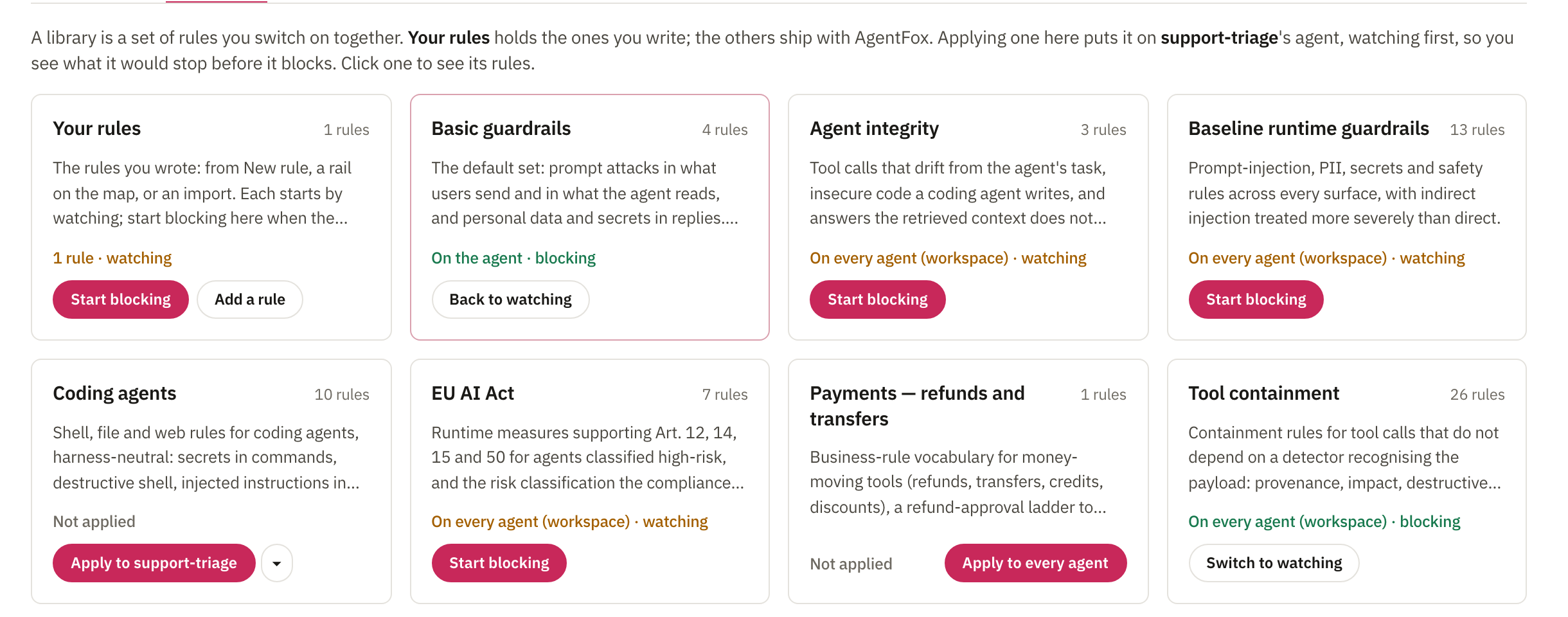
Open the Libraries tab. A library is a set of rules you switch on together: the basic guardrails, prompt attacks, EU AI Act controls and more. Press Apply to your project, or Apply to every agent. Every library starts by watching.
Read what it would have done
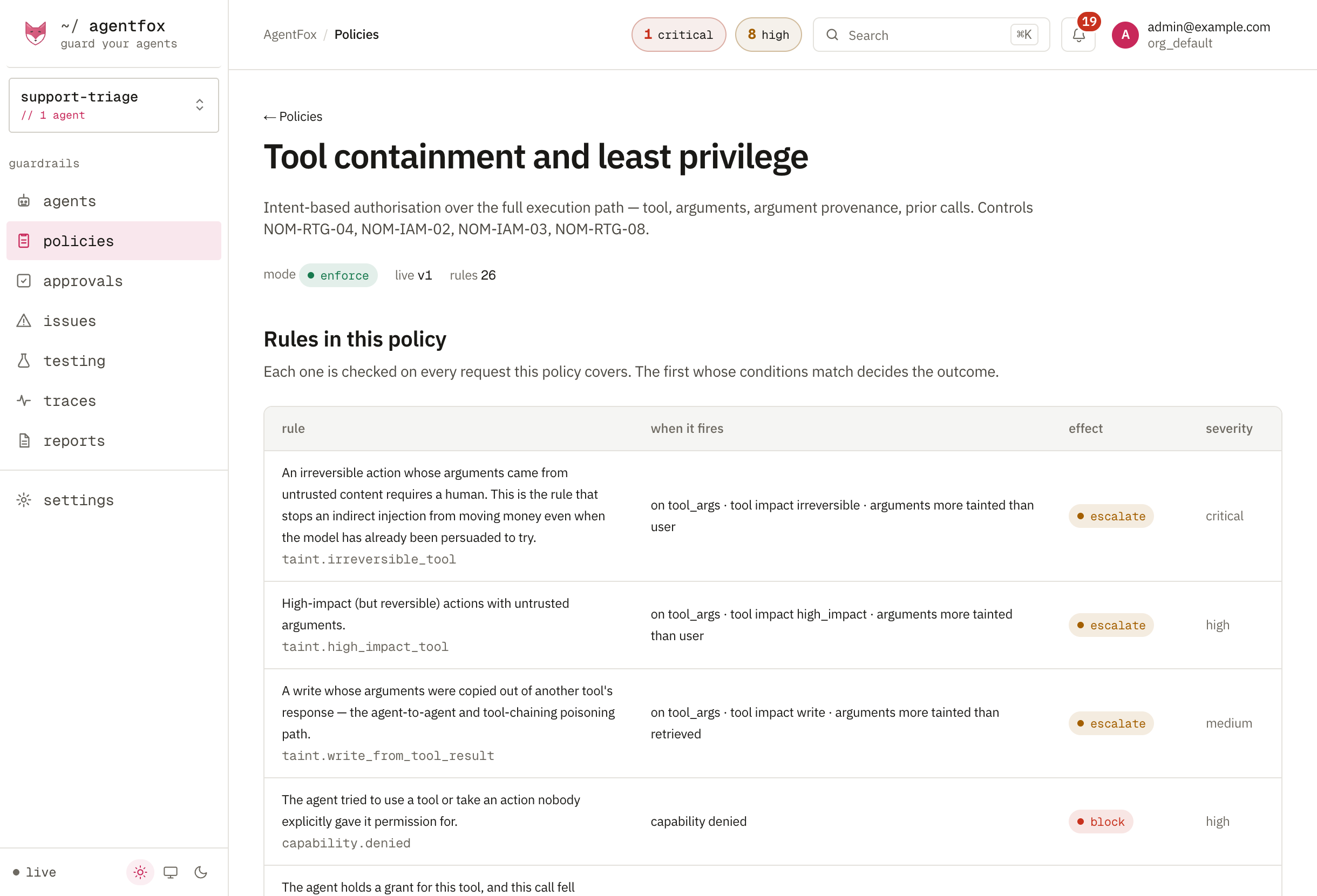
While a rule watches, it records what it would have done and stops nothing. Open a library from its card to see its rules and its mode. Open a rule to see its hits, how many calls it Would have stopped, and the runs behind them.
Switch to Block
Press Simulate to replay recent traffic as if the rules blocked, then Start blocking. Start blocking stays unavailable until a simulation of exactly these rules has run. Switch to watching undoes it.
What is on by default
- Tool access blocks from the start: a tool the agent was not given is refused.
- The basic guardrails stop prompt attacks and hide personal data and secrets in replies. On an agent with real traffic they watch first.
Change a rule for one agent
Open a rule and press Change. Under Applies to, choose Every agent or Only some agents, then the action or the sensitivity. AgentFox checks the change against the last 7 days before you press Apply. One agent can always be stricter than the workspace; looser only where the rule allows it.
Tuning
A guardrail blocked a real user? See Fix false positives.